
We will write a simple asteroids game using a python library called pygame. We will step through the processes of building the game in sections so that you can run and test each part before moving on to the next. The changes that you need for each addition to your program are in bold.
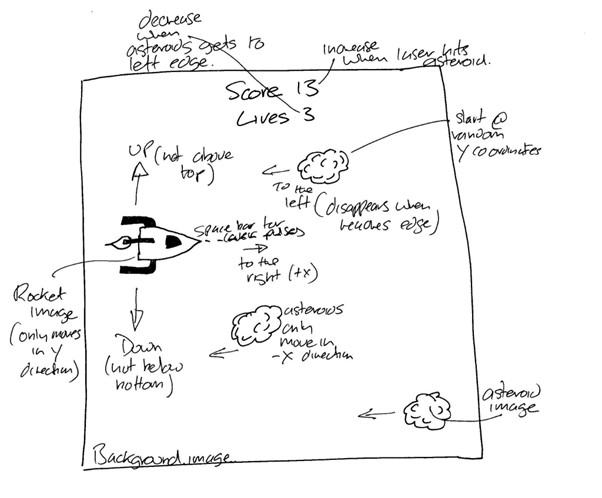
The game will have a rocket that you can control on the screen to shoot asteroids that are coming toward you. The more asteroids you hit, the higher your score but beware; if the asteroids hit you you lose a life and if you miss an asteroid and they make it all the way across the screen, you lose a life then too.
The starting point for this, as for all programs, is the design. This allows us to identify the steps that we need to code for, once we have written that piece of functionality
we can then test that it does what we expect. Below are the steps that we will code and test separately until we end with the working game.
The most interesting part of this game is the changes and enhancements that you can make, and what else you can do with the techniques that you learn from writing and understanding the code. As always look at each code step and try to understand how that matches the functionality we want to achieve.
Here are the requirements for the functionality that we want to write:
| Step | Functionality |
|---|---|
| 1 | Create the game window that will allow us to build in functionality. Make sure it has a nice space background |
| 2 | Create a game loop and add the ability to detect events and exit the game |
| 3 | Add the rocket and make it move up and down the screen using the arrow keys |
| 4 | Make the rocket shoot lasers when the space bar is pressed |
| 5 | Add asteroids that start on the left of the screen and move to the right. The asteroids need to start and have random positions up and down the right side of the screen |
| 6 | Allow the lasers to shoot the asteroids. Both the laser bolt and the asteroid need to disappear once they hit each other |
| 7 | Add the number of lives that you have in the game (lives will decrease if an asteroid makes it to the other side of the screen) and the score (the score goes up for every asteroid hit). The game is over once the lives equal zero. |
Add the requirements one at a time and, after each change, test your program to make sure it has no syntax errors and runs as you expect it to. Once you have written the program below, make changes, and make it better, some suggestions for possible changes are at the end of the chapter.
Firstly, we need to structure our program so that at the top we include the libraries that we will need to use. This is followed by the constants that will be needed to define things that will not change when the game is running. The first constants that we will need are the width and height of the screen. This will be 800 pixels by 800 pixels. The background screen will also not change so this is a constant. We first load in the picture that we have chosen for outer space (Find a suitable picture from the internet and call it space.jpg. This is an image that is saved in the same folder as the python program that we are building) and then make sure that it fits into the screen that we want to create.
Next, we have the functions and procedures that we will need to write that manage all of the functionality that we want to add to the game. The first part of this procedure is to add the background to the screen. We use the blit command that puts everything that we want onto the WIN (which is the window for our game).
The main part of the program initialises pygame (turns it on), creates the game window with our title “Asteroids”, and calls the procedure we have written to refresh the screen.
import pygame

#-----------Constants—-----------
#background and object sizes
HEIGHT = 800 #window height
WIDTH = 800 #window width
BACKGROUND = pygame.image.load("space.jpg")
BACKGROUND = pygame.transform.scale(BACKGROUND, (WIDTH, HEIGHT))

#-----------functions and procedures
def refreshScreen():

      WIN.blit(BACKGROUND,(0,0))
      pygame.display.update()

#----------main-------------
pygame.init()

#create background
WIN = pygame.display.set_mode((WIDTH,HEIGHT))
pygame.display.set_caption("Asteroids")

refreshScreen()
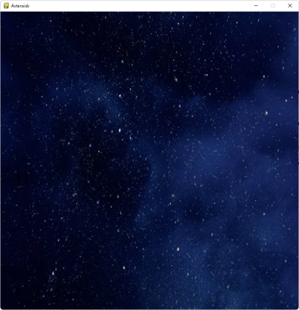
Now test your program. Your output should look like this (but with your space picture):
Now we have the initial set-up working and producing a screen that we will be able to play on, we can start to add the details of the game to the screen. As you know, every game has a loop; we need to add this and control the speed of the repeats to ensure that the loop repeats at a known rate. This is the number of times per second that we want to refresh the screen and check for key presses. This will prevent some things from happening faster than other things and will allow us to control all the movement on the screen. To do this we create a variable called FPS - Frames Per Second - and set this to 60. We will use this in a clock that we create and then put into our main game loop. We will also use the counter later when we look at creating asteroids.
The game loop is controlled by two things; how many lives we have left and whether or not we want to continue to play the game.
In order to stop the game if we want to before we run out of lives, we need to capture the user clicking on the “x” in the top corner of the screen:
We do this by looping through all possible events that pygame has in it and checking if the QUIT event has happened.
Next, we need to refresh the screen again. You have already created this but make sure that you move it so that it is now inside the game loop so that this refresh will happen once every time we repeat the loop.
At the bottom of the program, we add the code that stops the program if the exit button has been pressed.
import pygame

#-----------Constants—----------------------
#background and object sizes
HEIGHT = 800 #window height
WIDTH = 800 #window width
BACKGROUND = pygame.image.load("space.jpg")
BACKGROUND = pygame.transform.scale(BACKGROUND, (WIDTH, HEIGHT))
FPS = 60

#----------functions and procedures—---------
def refreshScreen():

      WIN.blit(BACKGROUND,(0,0))
      pygame.display.update()

#------------------------------main-------------
pygame.init()

#create background
WIN = pygame.display.set_mode((WIDTH,HEIGHT))
pygame.display.set_caption("Asteroids")
#game setup
clock = pygame.time.Clock()
lives = 3
Exit = False

counter = 0
#game loop
while lives >0 and not Exit:
      counter +=1
      clock.tick(FPS)

      for event in pygame.event.get():
            if event.type == pygame.QUIT:
                  Exit = True
      #moved into the game loop
      refreshScreen()

if Exit:
      pygame.quit()
Now test your program. Your output should look exactly the same as before, but your program should be running with no errors.
Now we have our game structure in place with the loop whizzing around 60 times per second and checking for things like button presses, we can add the functionality. In the constants part of your program, define the size of the rocket, and how fast the rocket will move up and down the screen when the buttons are pushed (5 pixels every time around the loop or 5 * 60 = 300 pixels per second) and load in the image that you will use for your rocket (“rocket.png” - find an image that you like from the internet but make sure it is a png type so that it has a transparent background. This needs to be in the same folder as your python program). Once the image is loaded, make sure it is the right size. In the refreshScreen procedure, we add the rocket as a parameter passed in, and draw the rocket on the screen after the background has been drawn. This will need to be put in the right place, controlled by the x and y coordinates. We’ll come to this in a second.
Next, we need to write the procedure that actually moves the rocket. To do this we need to know the keys that have been pressed and to have the variable that holds all the details of the rocket.
The screen that pygame gives us has x and y coordinates that start with 0,0 in the top left of the screen and the x gets bigger towards the right and the y gets bigger down the screen:
0,0 ---------> X
   |
   |
   |
   ↓
   Y
If the up key has been pressed, move the rocket in the negative Y direction (up the screen) by the velocity that we have defined for the rocket (in this case 5 pixels). If the down arrow has been pressed, move the rocket in the positive Y direction (down the screen).
Now we have a procedure that moves the rocket, we need to create the rocket in the main part of your program. We will use the pygame rectangle for this (we put the image of the rocket (ROCKET) into this rectangle in the refreshScreen procedure with the x and y coordinates of the rectangle that we moved with the moveRocket procedure)
Call the moveRocket procedure in the game loop just before we refresh the screen.
import pygame

#--------------Constants
#other constants unchanged

#Rocket image and size
ROCKET_HEIGHT = 100
ROCKET_WIDTH = 130
ROCKET_VELOCITY = 5
ROCKET = pygame.image.load("rocket.png")
ROCKET = pygame.transform.scale(ROCKET, (ROCKET_WIDTH, ROCKET_HEIGHT))


#--------------functions and procedures
def refreshScreen(rocket):
      WIN.blit(BACKGROUND,(0,0))
      WIN.blit(ROCKET,(rocket.x,rocket.y))
      pygame.display.update()

def moveRocket(keys,rocket):
      keys_pressed = pygame.key.get_pressed()
      if keys_pressed[pygame.K_UP] and rocket.y > 0:
            rocket.y -=ROCKET_VELOCITY
      if keys_pressed[pygame.K_DOWN] and rocket.y < HEIGHT-ROCKET_HEIGHT:
            rocket.y +=ROCKET_VELOCITY

#------------------------------main-------------
pygame.init()

#create background
WIN = pygame.display.set_mode((WIDTH,HEIGHT))
pygame.display.set_caption("Asteroids")
#game setup
lives = 3
clock = pygame.time.Clock()
Exit = False

#x,y,width,height
rocket = pygame.Rect(50,HEIGHT//2,ROCKET_WIDTH,ROCKET_HEIGHT)

counter = 0
#game loop
while lives >0 and not Exit:
      counter +=1
      clock.tick(FPS)

      for event in pygame.event.get():
            if event.type == pygame.QUIT:
                  Exit = True

      keys_pressed = pygame.key.get_pressed()

      #move the objects
      moveRocket(keys_pressed,rocket)

      refreshScreen(rocket)

if Exit:
      pygame.quit()
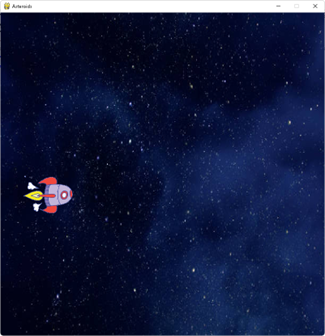
Now test your program. Your program should look like this (but with your rocket) and the rocket should move up and down the screen when you press the up and down arrows. Try different sizes and different velocities until you find the right settings for your game. Can you change your code so that it uses W and S (K_w, K_s) as the control keys?
When the space bar is pressed, we need to shoot lasers. These will start at the point that is the same as the nose of the rocket and move in a straight line from left to right and a speed that we define.
First thing to do is to define the size of the laser pulse. We don’t need an image for this as we will use the whole rectangle that pygame gives us and just colour it in red (so we also need to define the colour red, this uses the RGB - Red, Green, Blue - values. Maximum in the red channel and 0 in the others gives red.).
Now we need to add the laser pulses to the refreshScreen procedure. As before, when we added the rocket to this procedure, we now add the laser pulses as a parameter. As we will see this is a list variable that contains all of the pulses. This means that, when refreshing the screen, we can loop through pulses and create a pygame rectangle for each pulse and make that colour red.
As we moved the rocket, so we need to move the laser pulses. We don’t need to move these on a key press once they have started from the space key. After it has been created once, it needs to be moved smoothly across the screen to the right. The moveLaser procedure loops through all of the pulses in our list and, for each pulse, increase its x coordinate. It then returns the changed laser pulses (they have changed because their x coordinate is now different). This allows the lasers to start from this place, then next time around the loop.
In order to start the laser pulse, you need to check to see if the space bar has been pressed. The laser pulse needs to start in the right place in relation to the current position of the rocket (rocket.x and rocket.y). As the coordinate system always starts in the top left corner, the nose of the rocket is x = ROCKET_WIDTH, y = half of ROCKET_HEIGHT (note: “//” means integer division. We need to ensure we don’t have any floats from the result of a division). See below
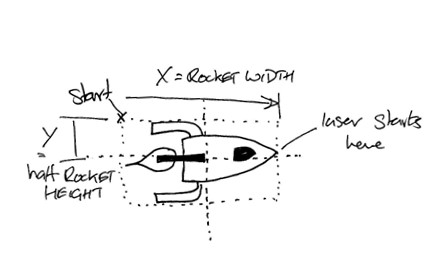
Now that we have a laser pulse, we need to add that to the list of all other laser pulses using the append method on the list.
Finally, we need to move and display all of the laser pulses using the moveLaserPulses procedure using the pulses that we have in the list while updating the list for next time.
import pygame

#--------------Constants
#other constants unchanged

#Laser pulses
LASER_HEIGHT = 6
LASER_WIDTH = 20
LASER_VELOCITY = 10

#colours
RED = (255,0,0)


#-----------functions and procedures
def refreshScreen(rocket,pulses):

      WIN.blit(BACKGROUND,(0,0))
      WIN.blit(ROCKET,(rocket.x,rocket.y))

      for pulse in pulses:
            pygame.draw.rect(WIN,RED,pulse)

      pygame.display.update()

def moveRocket(keys,rocket):
#unchanged

def moveLaserPulses(pulses):
      for pulse in pulses:
            pulse.x += LASER_VELOCITY
      return pulses

#------------------------------main-------------
pygame.init()

#create background
WIN = pygame.display.set_mode((WIDTH,HEIGHT))
pygame.display.set_caption("Asteroids")
#game setup
lives = 3
clock = pygame.time.Clock()
Exit = False

#x,y,width,height
rocket = pygame.Rect(50,HEIGHT//2,ROCKET_WIDTH,ROCKET_HEIGHT)
lasers = []

counter = 0
#game loop
while lives >0 and not Exit:
      counter +=1
      clock.tick(FPS)

      for event in pygame.event.get():
            if event.type == pygame.QUIT:
                  Exit = True

            #shoot lasers
            if event.type == pygame.KEYDOWN:
                  if event.key == pygame.K_SPACE:
#Rect(left, top, width, height)
# left = rocket.x+ROCKET_WIDTH
# top = (rocket.y+(ROCKET_HEIGHT//2))-(LASER_HEIGHT//2)
# width = LASER_WIDTH
# height = LASER_HEIGHT
                        LaserPulse = pygame.Rect(
                              rocket.x+ROCKET_WIDTH,\
                              (rocket.y+(ROCKET_HEIGHT//2))\
 			      	    - (LASER_HEIGHT//2),\
                               LASER_WIDTH,LASER_HEIGHT)
                        lasers.append(LaserPulse)

      keys_pressed = pygame.key.get_pressed()

      #move the objects
      moveRocket(keys_pressed,rocket)
      lasers = moveLaserPulses(lasers)

      refreshScreen(rocket,lasers)

if Exit:
      pygame.quit()
Now test your program. Your program should look like this and, as well as the rocket moving when the space bar is pressed, laser pulses shoot out. Can you change your laser colour to blue? Can you make it shoot very small bullets rather than long laser pulses?
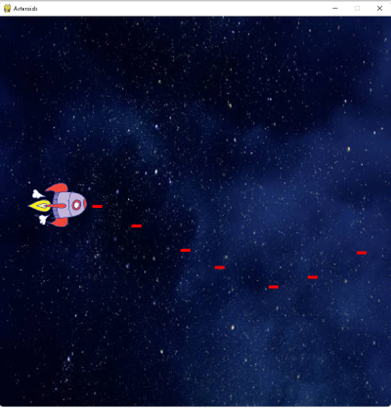
The rocket functionality is now almost complete it is time to add something to shoot at; the asteroids.
Asteroids need to appear at different random positions (random in the Y-direction). Therefore we need to import a new library; random, at the very top of the program. As for each of the other objects, add the constants that define the size, image (asteroid.png - find an image that you like from the internet but make sure it is a png type so that it has a transparent background. This needs to be in the same folder as your python program) and velocity.
As before, we need to add the asteroid list (they will be a list in the same way that laser pulses are) to the refreshScreen procedure and then loop through the asteroid list and “blit” each asteroid to the screen.
The moveAsteroids procedure is very similar to the moveLaserPulse procedure but moves the object in the negative x direction.
Each asteroid needs to be created at a random time as well as a random position. The spawn rate is randomly set up at the start of the game (it will be different for each run of the game). As a change in future, this could be moved to inside the game loop. This would then be different for every asteroid. You could try this in future.
Inside the game loop, compare the spawnRate with the number of times that the game loop has been repeated and only spawn an asteroid when the ratio is exact. There is no reason for doing this except that it gives a good, changing time between asteroids appearing on the screen and makes the game more interesting.
The asteroids need to be created at a random position up and down the screen but always in the same distance away from the right-hand edge of the screen. Once the asteroids have been created, add the new one to the list, move them all and refresh the screen, this time also including the asteroids.
import pygame
import random

#--------------Constants-------------
#other constants unchanged

#asteroids
ASTEROID_HEIGHT = 80
ASTEROID_WIDTH = 100
ASTEROID = pygame.image.load("asteroid.png")
ASTEROID = pygame.transform.scale(ASTEROID, (ASTEROID_WIDTH,
 									ASTEROID_HEIGHT))
ASTEROID_VELOCITY = 5

#-----------functions and procedures------------------
def refreshScreen(rocket,pulses,asteroids):

      WIN.blit(BACKGROUND,(0,0))
      WIN.blit(ROCKET,(rocket.x,rocket.y))

      for pulse in pulses:
            pygame.draw.rect(WIN,RED,pulse)

      for asteroid in asteroids:
            WIN.blit(ASTEROID,(asteroid.x,asteroid.y))

      pygame.display.update()

def moveRocket(keys,rocket):
      #unchanged

def moveLaserPulses(pulses):
      #unchanged

def moveAsteroids(asteroids):
      for asteroid in asteroids:
            asteroid.x -=ASTEROID_VELOCITY
      return asteroids

#------------------------------main-------------
pygame.init()

#create background
WIN = pygame.display.set_mode((WIDTH,HEIGHT))
pygame.display.set_caption("Asteroids")
#game setup
lives = 3
clock = pygame.time.Clock()
Exit = False

#x,y,width,height
rocket = pygame.Rect(50,HEIGHT//2,ROCKET_WIDTH,ROCKET_HEIGHT)
lasers = []
#asteroid spawn rate = number of times per second asteroids are spawned
#times a random number between 1 and 5
spawnRate = (FPS//2 ) * random.randint(1,5)
asteroids = []

counter = 0
#game loop
while lives >0 and not Exit:
      counter +=1
      clock.tick(FPS)

      for event in pygame.event.get():
            if event.type == pygame.QUIT:
                  Exit = True

            #shoot lasers
            if event.type == pygame.KEYDOWN:
                  if event.key == pygame.K_SPACE:
                        LaserPulse = pygame.Rect(
                              rocket.x+ROCKET_WIDTH,\
   (rocket.y+(ROCKET_HEIGHT//2)) - \
   (LASER_HEIGHT//2),\
                              LASER_WIDTH,LASER_HEIGHT)
                        lasers.append(LaserPulse)

      if counter%spawnRate == 0:
            #spawn a new asteroid at a random location
            asteroid_y = random.randint(0,HEIGHT - (ASTEROID_HEIGHT//2))
            asteroid = pygame.Rect(WIDTH - \
    ASTEROID_WIDTH - 50,asteroid_y,\
                              ASTEROID_WIDTH,ASTEROID_HEIGHT)
            asteroids.append(asteroid)

      keys_pressed = pygame.key.get_pressed()

      #move the objects
      moveRocket(keys_pressed,rocket)
      asteroids = moveAsteroids(asteroids)
      lasers = moveLaserPulses(lasers)

      refreshScreen(rocket,lasers,asteroids)

if Exit:
      pygame.quit()
Now test your program. Your program should look like this, with rocket, lasers and asteroids. Try different sizes and different velocities until you find the right settings for your game. What happens if you change the frame rate (FPS)? How does this impact the asteroids?
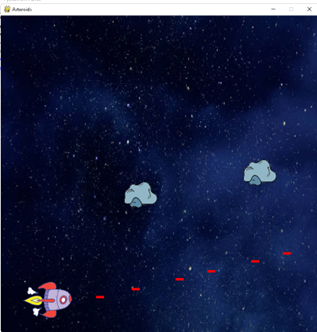
We now have all of the objects on the screen. It is time to make them interact with each other. As the laser pulses hit the asteroids, both lasers and asteroids need to disappear at the same time and the score needs to increase. If the asteroid hits the rocket, the number of lives needs to go down and the asteroid needs to disappear. If the asteroid makes it all the way across the screen the number of lives reduces and the asteroid disappears. If the laser pulse hits the asteroid, the score goes up (you need to add a new variable score=0 to the setup part of the main program). If the laser pulse makes it all the way across the screen, no score or lives are changed but the laser pulse needs to disappear.
Add three types of contact to the constants area of your program. These will allow us to tell the difference between the three types of events that affect the score and the number of lives remaining.
Now we can see why we were using the pygame rectangles for our object. These rectangles have a special property that allows them to know whether they have collided with another object. In the moveLaserPulses procedure, we need to pass in the asteroids as well as the laser pulses. We can then loop through each laser pulse and for each one, loop through all of the asteroids in the list and use the colliderect method to tell if the asteroid rectangle has collided with the laser pulse rectangle. If so, remove the asteroid and the laser pulse and tell the rest of the program that this has happened. By posting a new event of the type we defined in the constants. We can then check for this event in our game loop. When we check for these events, we reduce the number of lives or increase the score.
#--------------Constants-------------
#background and object sizes
#other constants unchanged

#hit events
ASTEROID_HIT_ROCKET = pygame.USEREVENT +1
LASER_HIT_ASTEROID = pygame.USEREVENT +2
ASTEROID_ESCAPED = pygame.USEREVENT +3

#----------functions and procedures—-------
def refreshScreen(rocket,pulses,asteroids):
      #unchanged

def moveRocket(keys,rocket):
      #unchanged

def moveLaserPulses(pulses,asteroids):
      for pulse in pulses:
            pulse.x += LASER_VELOCITY

            #loop through asteroids and see if collision
            for asteroid in asteroids:
                  if asteroid.colliderect(pulse):
                        asteroids.remove(asteroid)
                        if pulse in pulses:
                             pulses.remove(pulse)
                        pygame.event.post(pygame.event.Event \
(LASER_HIT_ASTEROID))
                  elif pulse.x == WIDTH:
                        if pulse in pulses:
                              pulses.remove(pulse)

      return pulses,asteroids

def moveAsteroids(asteroids,rocket):
      for asteroid in asteroids:
            asteroid.x -=ASTEROID_VELOCITY

            if asteroid.colliderect(rocket):
                        asteroids.remove(asteroid)
                        pygame.event.post(pygame.event.Event \
(ASTEROID_HIT_ROCKET))

            elif asteroid.x <= 0:
                  asteroids.remove(asteroid)
                  pygame.event.post(pygame.event.Event(ASTEROID_ESCAPED))

      return asteroids

#------------------------------main-------------
#game set up is unchanged

score = 0
#game loop
while lives >0 and not Exit:
      counter +=1
      clock.tick(FPS)

      for event in pygame.event.get():
            if event.type == pygame.QUIT:
                  Exit = True

            #shoot lasers
            if event.type == pygame.KEYDOWN:
                  if event.key == pygame.K_SPACE:
                        LaserPulse = pygame.Rect(
                              rocket.x+ROCKET_WIDTH, \
   (rocket.y+(ROCKET_HEIGHT//2))\
                              - (LASER_HEIGHT//2),\
                              LASER_WIDTH,LASER_HEIGHT)
                        lasers.append(LaserPulse)

            #check for hits
            if event.type == LASER_HIT_ASTEROID:
                  score +=1

            if event.type == ASTEROID_HIT_ROCKET:
                  lives -=1

            if event.type == ASTEROID_ESCAPED:
                  lives -=1

      if counter%spawnRate == 0:
            #spawn a new asteroid at a random location
            asteroid_y = random.randint(0,HEIGHT - \
                             (ASTEROID_HEIGHT//2))
            asteroid = pygame.Rect(
                              WIDTH - ASTEROID_WIDTH - \
                              50,asteroid_y,\
                              ASTEROID_WIDTH,ASTEROID_HEIGHT)
            asteroids.append(asteroid)

      keys_pressed = pygame.key.get_pressed()

      #move the objects
      moveRocket(keys_pressed,rocket)
      asteroids = moveAsteroids(asteroids,rocket)
      lasers,asteroids = moveLaserPulses(lasers,asteroids)

      refreshScreen(rocket,lasers,asteroids)

if Exit:
      pygame.quit()
Now test your program. Your program should look unchanged but it should stop when either 3 asteroids reach the left edge or the ship is hit three times. Asteroids should disappear when hit by a laser pulse. Try different sizes and different velocities until you find the right settings for your game.
Most of the game is now complete. It only remains to add the text that shows the score and lives (both of which we already know about) and to add the “Game Over” across the screen when we have run out of lives.
The first thing to do is to add a new colour to our constants - BLUE. We will use this when writing the text to the screen.
Text in pygame is written using three lines of code so we will write a procedure for these three lines of code and then call that procedure, print_text, for each of the three lines that we want to write; score, lives and “game over”.
Once we have the print_text procedure, we can then write a procedure for the updating of score and lives (this will be called every time we go around the game loop from refreshScreen procedure) and another procedure for gameOver that we only call once the lives equal zero.
Lastly, we need to add the score and lives to the call to refreshScreen in the main game loop….and we’re done. Enjoy the game and try to make your own enhancements, some suggestions are below.
import pygame
import random
#--------------Constants-------------
#other constants unchanged
BLUE = (0,0,255)

#--------------procedures and functions—
def print_text(text,display,x,y,fontSize):
      font = pygame.font.SysFont("Ariel",fontSize)
      surface = font.render(text, True, BLUE)
      display.blit(surface,(x,y))

def updateText(score,lives):
      print_text("Score = "+str(score),WIN,(WIDTH//2)-80,25,60)
      print_text("Lives = "+str(lives),WIN,(WIDTH//2)-80,60,60)

def gameOver():
      print_text("Game Over",WIN,100,HEIGHT//2,150)

def refreshScreen(rocket,pulses,asteroids,score,lives):

      WIN.blit(BACKGROUND,(0,0))
      WIN.blit(ROCKET,(rocket.x,rocket.y))

      for pulse in pulses:
            pygame.draw.rect(WIN,RED,pulse)

      for asteroid in asteroids:
            WIN.blit(ASTEROID,(asteroid.x,asteroid.y))

      updateText(score,lives)
      if lives == 0:
            gameOver()

      pygame.display.update()

def moveRocket(keys,rocket):
      #Procedure unchanged

def moveLaserPulses(pulses,asteroids):
      #function unchanged

def moveAsteroids(asteroids,rocket):
      #function unchanged

#------------------------------main-------------
#set-up unchanged

#game loop
while lives >0 and not Exit:
      counter +=1
      clock.tick(FPS)
      keys_pressed = pygame.key.get_pressed()

       #shoot lasers
      if keys_pressed[pygame.K_SPACE]:
            LaserPulse = pygame.Rect(
                  rocket.x+ROCKET_WIDTH,\
                  (rocket.y+(ROCKET_HEIGHT//2))\
                      - (LASER_HEIGHT//2),\
                  LASER_WIDTH,LASER_HEIGHT)
            lasers.append(LaserPulse)

      for event in pygame.event.get():
            if event.type == pygame.QUIT:
                  Exit = True

            #check for hits
            if event.type == LASER_HIT_ASTEROID:
                  score +=1

            if event.type == ASTEROID_HIT_ROCKET:
                  lives -=1

            if event.type == ASTEROID_ESCAPED:
                  lives -=1

      if counter%spawnRate == 0:
            #spawn a new asteroid at a random location
            asteroid_y = random.randint(0,HEIGHT - (ASTEROID_HEIGHT//2))
            asteroid = pygame.Rect(
                              WIDTH - ASTEROID_WIDTH - 50,asteroid_y,\
                              ASTEROID_WIDTH,ASTEROID_HEIGHT)
            asteroids.append(asteroid)

      #move the objects
      moveRocket(keys_pressed,rocket)
      asteroids = moveAsteroids(asteroids,rocket)
      lasers,asteroids = moveLaserPulses(lasers,asteroids)

      refreshScreen(rocket,lasers,asteroids,score,lives)

if Exit:
      pygame.quit()
Once you have created the basic game there are lots of other things that you could change or add to make the game even better. You could:
Change the speed of the rocket moving up and down to make it easier or harder
Change the speed of the asteroids so that some came out fast and some slow
Add sounds. Make the laser sound when you shoot and an explosion when you hit an asteroid. See “Zoom, Boing, Bounce” for how to do this
Add animation to the asteroids so that they explode when hit.
Add an additional level when the score gets to (say) 20. In the next level, you could have other objects such as spaceships rather than asteroids. These could come faster.
Additional levels could be more and more complicated with different objects and backgrounds. All of this would be controlled using if statements in the refreshScreen, and move asteroids procedures.
Once you understand the components of this game you should be able to see how you can make only a small number of changes to turn this into the traditional Space Invaders types of game (rocket only moves in the X direction rather than the Y direction. Create blocks of aliens in the list rather than asteroids etc).
Whatever you choose, have fun and good luck.