.... it's for you! If you have got this far and are thinking…”hmm”… then you have already made a huge step in the right direction. If you are curious about how to program a computer, then this is the website for you. If you are taking computing at school and want to get ahead of the game…or get ahead of the teacher, then this is the website for you. And why wouldn’t you? Programming is great fun and we will produce some cool games along the way to show what you need to get started in becoming the greatest programmer in the world!
There are many different tools available that will let you write python scripts. These tools are called Integrated Development Environments (IDEs) and we’ll talk about three of them here that you can use easily. The IDEs that we will look at are IDLE, Replit.com and Mu. In the back of this book, you can find links to each of these as well as others that will let you write python on an Apple Ipad or even your android phone. The three IDEs that we will look at all have their advantages and disadvantages so in the end, it is really down to you to choose the one that you like best. There are also many other different IDEs that we won’t look at but you might want to explore such as Pycharm, Microsoft Visual Studio and many other. There are links to the three that we will concentrate on as well as some others in the links section towards the back of this book. For each of the three, I’ll now show you how to open each editor, write a program, save that program and run it.
We’ll look at setting up each of them but the rest of the book will use just one; IDLE. Let’s look at that one first.
IDLE comes packaged with the python programming language so it is available to everyone who downloads the language onto their computer.
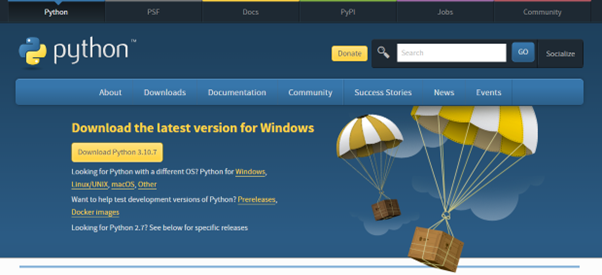
Down load python onto your computer. From the official python website here
The IDLE integrated Development and runtime environment comes as part of python
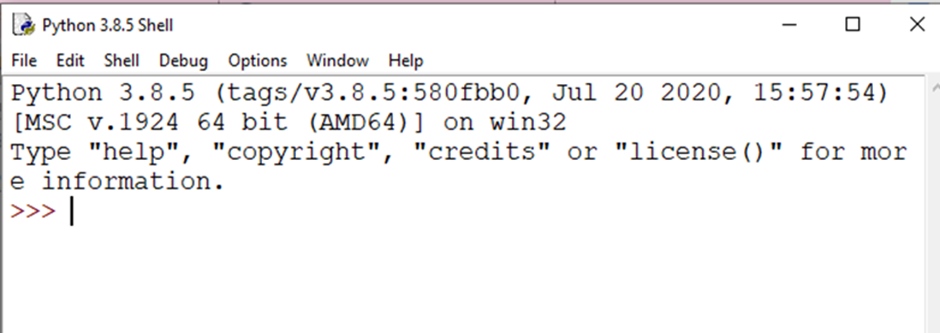
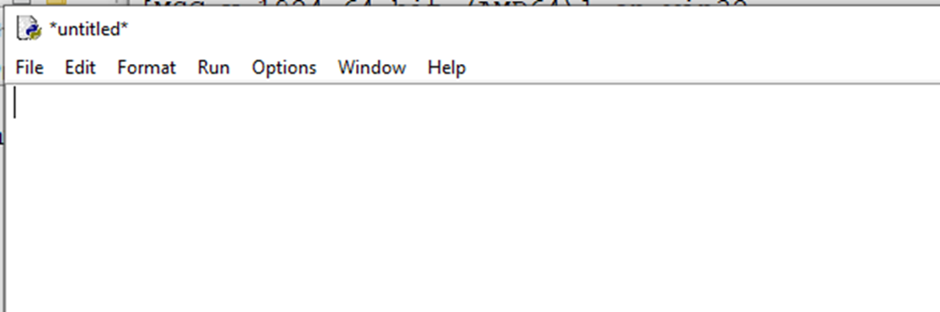
Notice the >>> chevrons. If you are seeing this, it is not the best place to start writing your program. Go to File->new and bring up the next window, the Program editing window.
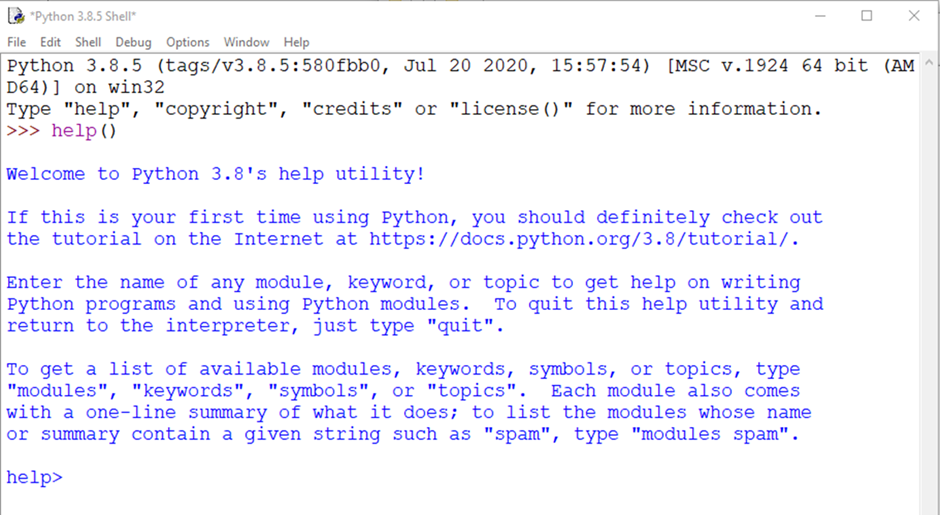
In the python shell window (the window with the >>>) you can always find out what key words do. Just type help() in the python shell window. Now type in the key work that you want python to tell you about.
Replit.com is an easy IDE to use as it can be used from any device that has web access. Replit.com, as you may have guessed from the name, is a web-based development environment that also lets you save your program on the web as well. You can start writing your program on one machine, move to a different machine and then continue writing from where you left off. This is particularly useful if you want to move from home to school/college or between offices. Another advantage is that you can work in a team. Once your have created a replit (the name for a project with code), you can invite other people to join your project. The disadvantage is that you may not be able to run complex program easily or quickly. If you have difficulty with things like graphics or libraries such as guizero, it might be best to switch to one of the other IDEs.
You will need an account from here
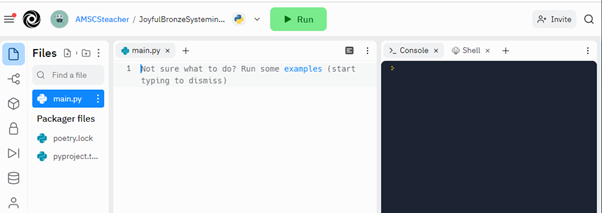
Once you have created an account, you will then be asked which language you want to develop in, choose python. In this IDE, you will see three areas of the window. The first is where you will store your files including any images, sound or python files (it always gives you the first file as main.py). The middle pain is where you will write your code and the right-hand pain is where you will see the output from the programs that you run
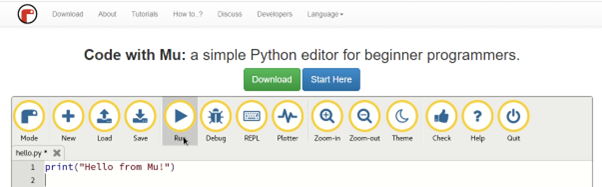
Mu is another editor for python that can be found here: