
While it is fun to write games and create clever algorithms in computing, if you are a professional software developer, you will find that you need to ask users for information a lot of the time. This information is then processed by the programs that you have written. A good example of this is asking for a user name and password. Writing a way to ask for a password and checking that it is a valid password is a good way to learn many of the techniques needed to accept data, and validate and authenticate data before processing it. This password entry form will ask the user for their name and password, check that the password is the right type of password (validation) and then check that the password matches the user name (authentication). As it is a very simple example, we will only check it against 4 username/password pairs. We will keep these pairs in a special python variable called a dictionary. In chapter 5 you can see how to link this program to a database or file to check against many hundreds of users but first, let’s build our entry form.
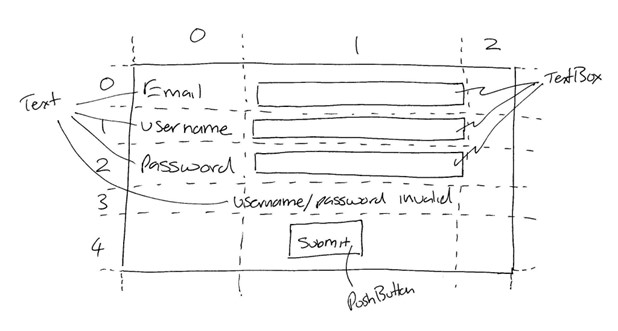
The user will enter the three pieces of information; their email, their username and their password (which will also hide their password as they type). When the submit button is pressed the password will be checked for the length (it must be at least 8 characters long), checked to ensure it has at least one upper-case letter, checked to ensure it has at least one number and checked to ensure it has at least one special character. If it fails any of these tests, the user will be told which test it fails. If it passes all of these tests, the email address will be used to get the username and password pair (if we don’t have the email address, that error will also be told to the user). Once we have the username and password associated with the email address, they will be checked as well. If everything is correct, the user will be told they are valid and have been authenticated.
| Step | Functionality |
|---|---|
| 1 | Create a form with widgets: Text - “email”, “username”,”password”,”info Message”, TextBox - Email, Username, password, PushButton - Submit |
| 2 | Create 4 dummy sets of email/username/password |
| 3 | When the submit button is pressed.
|
| 4 | If all tests pass, use the emai address to get the username and password Check that the user name and password are the same as that typed in by the user. |
There will be a number of widgets that all need to have the same attributes with regard to font type, font size and other setting (cab you add colour? Make all the writing blue - don’t forget python is American and colour is spelt “color”). Therefore one way to do this is to create a function that sets the font for any widget that is given to it.
from guizero import *

#-----------procedures and functions----------
def setFont(widget):
    widget.font = FONT
    widget.text_size = FONT_SIZE
    return widget

def submit():
    pass

#--------main---------------
FONT_SIZE = 24
FONT="Ariel"

app = App("Password Entry", height=250, width=600,layout="grid")

emailText = Text(app,text="Email",grid=[0,0],height=1,width=10)
emailText = setFont(emailText)
emailTextBox = TextBox(app,grid = [1,0],height = 1, width = 20)
emailTextBox = setFont(emailTextBox)

usernameText = Text(app,text="Username",grid=[0,1],height=1,width=10)
usernameText = setFont(usernameText)
usernameTextBox = TextBox(app,grid = [1,1],height = 1, width = 20)
usernameTextBox = setFont(usernameTextBox)

#now create the password pair of widgets in the same way

infoText = Text(app,grid = [0,3,2,1],text="Please enter your details")
infoText = setFont(infoText)

submitButton = PushButton(app,grid = [1,4],width = 7,height =1,\
 					text="Submit"\,command=submit,align="left")
submitButton = setFont(submitButton)

app.display()
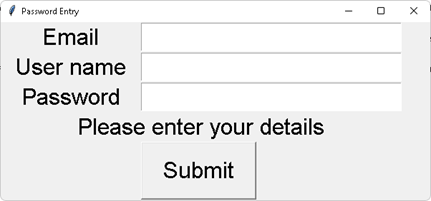
Now test your program. Your output should look like this. Can you change the font colour to Blue (don’t forget to use RGB)?
Now that we have our basic form, we can start to add functionality. The first thing to do is to create some dummy accounts. We will use a dictionary to hold these. Dictionaries use a key:value pair. The key we will use is the email address and the value will be another pair of values to hold the user name and password. This second pair is called a tuple. We will add an if statement that only goes and looks for the account details if there an email address entered. Try removing this if statement and pressing the button. What happens if you try to find the address but the email field is empty?
Put some temporary print statements in the submit procedure so that you can prove that the right values will be used.
from guizero import *

#-----------procedures and functions----------
def setFont(widget):
    widget.font = FONT
    widget.text_size = FONT_SIZE
    return widget

def submit():
    if emailTextBox.value != "":
          userName,password = accounts[emailTextBox.value]
          print(userName)
          print(password)

def getAccounts():
      accounts = {"fred.blogs@hotmail.com":
("Big Freddy","FreddyIsNumber1$"),
                  "Alice.smith@gmail.co.uk":
("Alice S","AliceIsAGenius99!")}
      return accounts

#--------main---------------
accounts = getAccounts()

#the rest of the code is unchanged
Now test your program. Your output should look the same as before but when you press submit, if there is a valid email address, you should have the associated username and password printed out as well. Can you add a few more user accounts?
We have already added one piece of validation; check if the email field has text in it when the submit button is pressed. We will now add the rest and make a change to also tell the user what the error is, should there be one.
def doesNotContain(password,testList):
      #make sure you understand the logic here
      DoesNotContain = True
      for character in password:
            if character in testList:
                  DoesNotContain = False
      return DoesNotContain

def validPassword(passWord):
      numbers = ["0","1","2","3","4","5","6","7","8","9"]
      #create a list variable to hold special characters
      validPassword = True
      if len(passWord) < 8:
            validPassword = False
            infoText.value = "Password must be at least 8 chars"
      elif doesNotContain(passWord,numbers):
            validPassword = False
            infoText.value = "Password must contain a number"
      #add the elif to test for special characters
      #add additional checks for upper and lower case letters

      return validPassword

def submit():

    if passwordtBox.value != "":
          if validPassword(passwordtBox.value):
                infoText.value = "Password is valid"
                if emailTextBox.value != "":
                      userName,password = \
                              accounts[emailTextBox.value]
                      print(userName)
                      print(password)

#all other code is the same
Now test your program. Use the test specification below to prove that your program works as expected. Add additional checks for special characters (!£$%^&*). To do this, build a list in the same way that numbers are in a list and pass to the same function. Also for at least 1 upper case and at least 1 lower case letter (google “python upper case check”).
Just we have typed in a password of the correct, valid format above, this does not mean that the password matches the other details. A change to the submit procedure to check that the entered details are the same as expected will authenticate the user.
Use the guizero documentation on line (google python guizero) to find out how to hide the text in the password field.
def submit():

    if passwordtBox.value != "":
          if validPassword(passwordtBox.value):
                infoText.value = "Password is valid"
                if emailTextBox.value != "":
                      userName,password = \
                              accounts[emailTextBox.value]
                      if userName == usernameTextBox.value and\
                         password == passwordtBox.value:
                            infoText.value = "Account authenticated"
                      else:
                            infoText.value = "Username/password incorrect"
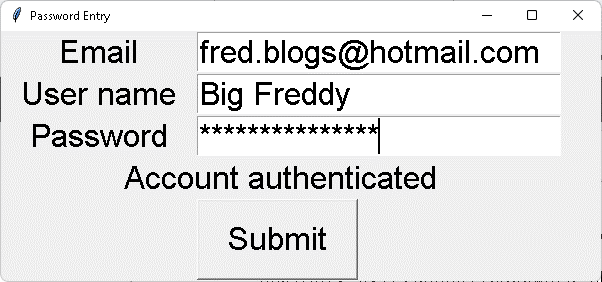
Now test your program. If you have made the change hide the text in the password field, your out should look like this. The small change to the submit procedure will now authenticate the details. Complete the testing below
Testing is a vital part of building robust, well made code. Each project should have a set of individual tests that tests each piece of functionality one at a time. The tests need to cover: things that you know should work (normal data), things that you know would work but might be extreme cases (boundy data), things that you know should not work or get trapped by your program (invalid data) and things that should clearly never work such as putting a letter (A,B,C) where a number is expected (erroneous data). As an example of what a test specification should look like, here is a set tests that you might use for the password checker program. Complete the expected out come for all tests and, when you have completed the program and run it, add in the actual outcome, even if it is as expected. Add additional tests for special characters and upper an lower case.
| Test | Description | Data | Expected Outcome | Actual Outcome |
|---|---|---|---|---|
| 1 | When no data is entered into any fields and the submit button is pressed a message is displayed | None | Info message asks for all fields to be entered | |
| 2 | Data is entered into one field but not the others and submit button is pressed, a message is displayed. Repeat for each of the fields with others being empty | Email = fred.blogs@hotmail.com | Info message asks for all fields to be entered | |
| 3 | All fields are entered with correct data, info message as “Account authenticated” |
|
|
|
| 4 | All fields are entered with correct data, password is a valid password but is incorrect |
|
Password is not visible. Info message says “Username or Password incorrect” | |
| 5 | All fields are entered but password is less than 8 characters long |
|
Error message created | |
| 6 | All fields are entered but password has no numbers in it |
|
Error message created |