Pong is one of the very first video games ever written. It is a simple game with two plays who bat a ball back and forth. This version of the game is also very simple. It uses the pygame library to draw the screen and control the objects, the two bats, the ball and the score for each player.
We will draw a black screen with white paddles, ball and scores. The paddles will be moved using the “w” and “s” keys for player 1 and up and down arrows for player 2. The ball's motion will be the simple change in its x and y coordinates. If these are both changed the same, the ball will always move at 45 degrees to the edges. When the ball bounces off a wall or paddle, one of the directions (either x or y) will be switched to the opposite direction. For example, if the ball bounces off the top or bottom of the screen the y direction will be flipped:
Ball_speed_y = ball_speed_y * -1
If the ball bounces off the side walls or a paddle, the x direction will be flipped:
Ball_speed_x = ball+speed_x * -1
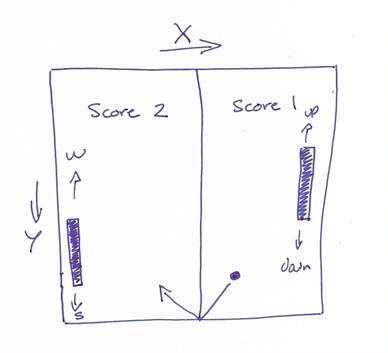
The following is the pseudocode for the program. Like every game, it shows the three parts of the game; the Initial set-up, the game loop and the finishing up:
#Set up constants for:
Size of the screen
Size of the ball
Size of the paddles
Position of the paddles
Speed of the ball
Speed of the paddles
Size of the text
Position of the text
Winning score

Initialise pygame
Set scores = 0
Create the screen
Create the paddles
Create the ball
Set the balls initial speed and direction

Game_over = False
#create the game loop
While not Game Over
	Set FPS = 60
	Check for quit event
	Move the paddles
	Move the ball
	If ball collides with top and bottom of the screen:
		Ball_speed_y = ball_speed_y *-1
	If ball hits left edge:
		Score1 +=1
		Ball_speed_x = ball_speed_x *-1
	If ball hits right edge:
		Score2 +=1
		Ball_speed_x = ball_speed_x *-1
	If ball hits a paddle:
		Ball_speed_x = ball_speed_x *-1

	If either score > winning score:
		Game Over = True

	‘#Redraw the screen and all of the components
	Draw Screen (black)
	Draw paddles
	Draw ball
	Draw Centre Line
	Draw text to screen (score1)
	Draw Text to screen (score2)
	Update screen
Draw text to screen(Game Over)
Use the pseudo code to check that you have got your indentation correct.
| Step | Functionality |
|---|---|
| 1 | Set up constants |
| 2 | Initialise the game |
| 3 | Create game loop and check for the “quit” event |
| 4 | Move the paddles and redraw the screen |
| 5 | Move the ball and redraw the screen |
| 6 | Check for collisions |
| 7 | Add scores |
| 8 | Check for game over and finish the game |
The first thing to do is to import the pygame library and then create all of the constants that we will use throughout the game. This way, if we want to change anything (such as the size of the screen) we can make a small change here and everything else in the game will behave as before.
import pygame

# ----constants-------------------
SCREEN_WIDTH = 640
SCREEN_HEIGHT = 480
BALL_SIZE = 10
PADDLE_WIDTH = 10
PADDLE_HEIGHT = 60
PADDLE_SPEED = 5
BALL_SPEED = 5
BLACK = (0, 0, 0)
WHITE = (255, 255, 255)
DIST_AWAY_FROM_EDGE = 10
FONT_SIZE = 40
TEXT_POS_X = 60
WINNING_SCORE = 5
FPS = 60
Test your program. It should do nothing but there should be no errors
Now we can start to create the game and all of the objects that we want to put on the screen; paddles, ball and scores.
#----------main--------------------

# Initialize pygame
pygame.init()
player1_score = 0
player2_score = 0
game_over = False

# Create the screen
screen = pygame.display.set_mode((SCREEN_WIDTH, SCREEN_HEIGHT))
pygame.display.set_caption("Pong")

# Create the paddles
player1_paddle =pygame.Rect(0+DIST_AWAY_FROM_EDGE, \
                             SCREEN_HEIGHT/2-PADDLE_HEIGHT/2, \
                             PADDLE_WIDTH, PADDLE_HEIGHT)
player2_paddle =pygame.Rect(SCREEN_WIDTH-PADDLE_WIDTH-DIST_AWAY_FROM_EDGE, \
                             SCREEN_HEIGHT/2-PADDLE_HEIGHT/2, \
                             PADDLE_WIDTH, PADDLE_HEIGHT)

# Create the ball
ball = pygame.Rect(SCREEN_WIDTH/2-BALL_SIZE/2, \
                   SCREEN_HEIGHT/2-BALL_SIZE/2, \
                   BALL_SIZE, BALL_SIZE)

# Set the ball's initial speed and direction
ball_speed_x = BALL_SPEED
ball_speed_y = BALL_SPEED

# Set up the game loop
clock = pygame.time.Clock()
Test your program. It should now look like this:
Adding the game loop and quit event check will not change the appearance of the screen but the “x” in the top right corner will now stop the game.
# Set the ball's initial speed and direction
ball_speed_x = BALL_SPEED
ball_speed_y = BALL_SPEED

# Set up the game loop
clock = pygame.time.Clock()
while not game_over:
    # Set the game speed
    clock.tick(FPS)
    # Handle events
    for event in pygame.event.get():
        if event.type == pygame.QUIT:
            pygame.quit()
            quit()
Test your program. Make sure the quit functionality is working correctly.
We can now start to put objects onto the screen and redraw the screen every time we go around the loop (which will be controlled by the clock tick and Frames per second, FPS = 60).
    # Handle events
    for event in pygame.event.get():
        if event.type == pygame.QUIT:
            pygame.quit()
            quit()

    # Move the paddles
    keys = pygame.key.get_pressed()
    if keys[pygame.K_w] and player1_paddle.top > 0:
        player1_paddle.top -= PADDLE_SPEED
    if keys[pygame.K_s] and player1_paddle.bottom < SCREEN_HEIGHT:
        player1_paddle.bottom += PADDLE_SPEED
    if keys[pygame.K_UP] and player2_paddle.top > 0:
        player2_paddle.top -= PADDLE_SPEED
    if keys[pygame.K_DOWN] and player2_paddle.bottom < SCREEN_HEIGHT:
        player2_paddle.bottom += PADDLE_SPEED

    # Draw the game objects
    screen.fill(BLACK)
    pygame.draw.rect(screen, WHITE, player1_paddle)
    pygame.draw.rect(screen, WHITE, player2_paddle)
    # Update the screen
    pygame.display.update()
Now test your program. Make sure your paddles move up and down using the w,s, up and down keys. Your screen should look like this:
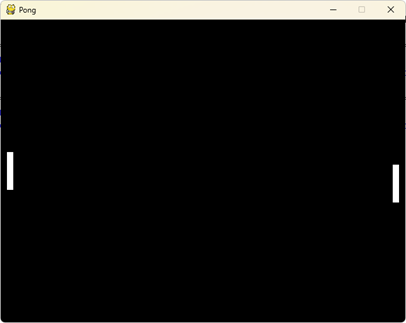
The ball will initially start at a position near the centre of the screen moving with a positive x and positive y direction -down towards the bottom right of the screen. It will only appear once and move quickly off the screen as we have not yet added the collision handling that will bounce the ball off the wall.
    # Move the paddles
    keys = pygame.key.get_pressed()
    if keys[pygame.K_w] and player1_paddle.top > 0:
        player1_paddle.top -= PADDLE_SPEED
    if keys[pygame.K_s] and player1_paddle.bottom < SCREEN_HEIGHT:
        player1_paddle.bottom += PADDLE_SPEED
    if keys[pygame.K_UP] and player2_paddle.top > 0:
        player2_paddle.top -= PADDLE_SPEED
    if keys[pygame.K_DOWN] and player2_paddle.bottom < SCREEN_HEIGHT:
        player2_paddle.bottom += PADDLE_SPEED

    # Move the ball
    ball.x += ball_speed_x
    ball.y += ball_speed_y

    # Draw the game objects
    screen.fill(BLACK)
    pygame.draw.rect(screen, WHITE, player1_paddle)
    pygame.draw.rect(screen, WHITE, player2_paddle)
    pygame.draw.ellipse(screen, WHITE, ball)
    # Update the screen
    pygame.display.update()
Now test your program. Make sure the ball appears and moves diagonally off the bottom right corner of the screen
When bouncing the ball away from the edges and the paddles we flip the x and y directions around depending on whether the ball has bounced off the top/bottom (flip y) or the sides/paddles (flip x). If the ball hits a side wall rather than a paddles, the score of the opposite player goes up by one (we’ll draw the scores to the screen in a moment).
    # Move the ball
    ball.x += ball_speed_x
    ball.y += ball_speed_y

    # Handle ball collisions with walls
    if ball.top < 0 or ball.bottom > SCREEN_HEIGHT:
        ball_speed_y *= -1

    #if it touches the back wall, score of the opponent goes up
    if ball.left < 0:
        player1_score +=1
        ball_speed_x *= -1
    if ball.right > SCREEN_WIDTH:
        player2_score +=1
        ball_speed_x *= -1

    # Handle ball collisions with paddles
    if ball.colliderect(player1_paddle) or ball.colliderect(player2_paddle):
        ball_speed_x *= -1

    # Draw the game objects
    screen.fill(BLACK)
    pygame.draw.rect(screen, WHITE, player1_paddle)
    pygame.draw.rect(screen, WHITE, player2_paddle)
    pygame.draw.ellipse(screen, WHITE, ball)
    # Update the screen
    pygame.display.update()
Now test your game. The ball should bounce off the sides, top and bottom as well as the paddles
When drawing text to the screen there are always three lines of code to write for one piece of text. As we want to write three different things (two scores plus the game over at the end), we can either write 9 lines of code (which will look messy) or we can put the print_text functionality into a procedure and call it three times. This will be much neater and will be a procedure that we can use many times in the future. All procedures go before the main part of the program but after the constants.
FONT_SIZE = 40
TEXT_POS_X = 60
WINNING_SCORE = 5
FPS = 60
#----------------Procedures-----------
def print_text(text,display,x,y,fontSize):
      font = pygame.font.SysFont("Ariel",fontSize)
      surface = font.render(text, True, WHITE)
      display.blit(surface,(x,y))
#----------main--------------------
# Initialize pygame
pygame.init()
player1_score = 0
player2_score = 0
game_over = False
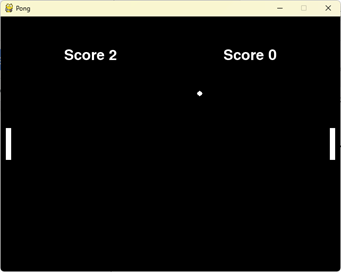
Now we can call this procedure in the main game loop and write the scores to the screen
# Draw the game objects screen.fill(BLACK) pygame.draw.rect(screen, WHITE, player1_paddle) pygame.draw.rect(screen, WHITE, player2_paddle) pygame.draw.ellipse(screen, WHITE, ball) print_text("Score "+str(player1_score),\ screen,(SCREEN_WIDTH//2)+100,\ TEXT_POS_X,FONT_SIZE) print_text("Score "+str(player2_score),\ screen,(SCREEN_WIDTH//2)-200,\ TEXT_POS_X,FONT_SIZE) # Update the screen pygame.display.update()Now test your program. Your screen should look like this:
To make things nice and neat, we can add a centre line to the pong court and as we set the maximum score to 5 in the constants, we can use this to see if one or other of the players reaches this score. If so, they have won and we stop the game and print the “Game Over” banner.
    if player1_score == WINNING_SCORE or player2_score == WINNING_SCORE:
          game_over = True # stop the game loop

    # Draw the game objects
    screen.fill(BLACK)
    pygame.draw.rect(screen, WHITE, player1_paddle)
    pygame.draw.rect(screen, WHITE, player2_paddle)
    pygame.draw.ellipse(screen, WHITE, ball)
    print_text("Score "+str(player1_score),\
               screen,(SCREEN_WIDTH//2)+100,\
               TEXT_POS_X,FONT_SIZE)
    print_text("Score "+str(player2_score),\
               screen,(SCREEN_WIDTH//2)-200,\
               TEXT_POS_X,FONT_SIZE)
    pygame.draw.aaline(screen, WHITE, (SCREEN_WIDTH/2, 0),\
                       (SCREEN_WIDTH/2, SCREEN_HEIGHT))

    # Update the screen
    pygame.display.update()

#complete the game
print_text("Game Over",screen,(SCREEN_WIDTH//2)-200,SCREEN_HEIGHT//2,100)
# Update the screen
pygame.display.update()
Test your program. Your game should now be complete and, when one player wins, it should look like this
Add sound so that it makes a beep every time the ball hits the top, bottom, or paddle and a different sound when the ball hits the sides and a player loses a point.
Change the game so that, when the point is lost, the space bar needs to be pressed to start the ball going again.
Change the direction that the ball starts going so that it is different if player 1 loses the point to player two losing the point